BLOG
- 10 min read
BYDucks and estuaries go together. So it’s no surprise that MotherDuck, a cloud data warehouse, pairs well with Estuary, a data pipeline platform.
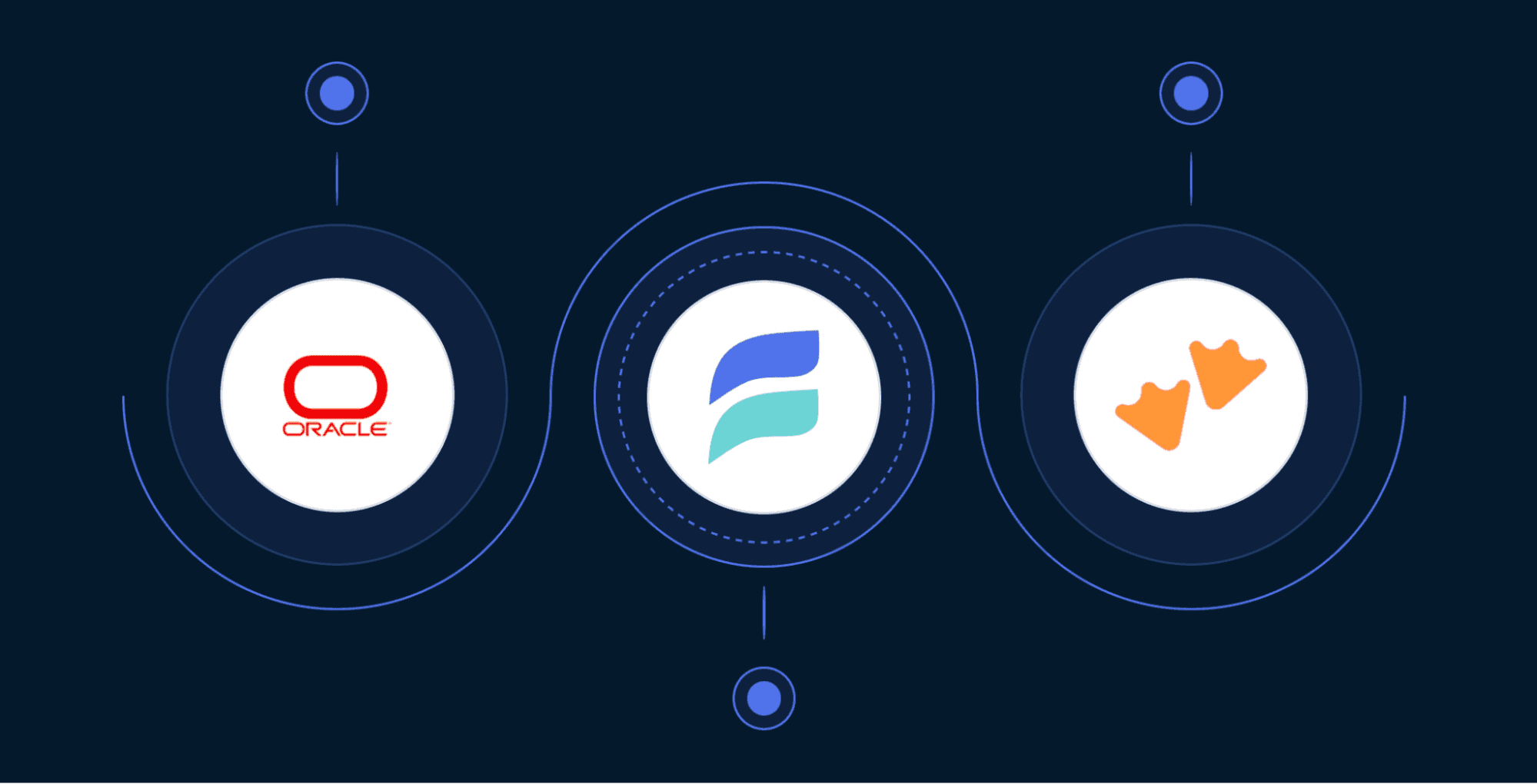
In a previous post, we explored what makes these platforms unique. Today, we’re going to focus on a specific integration streaming Oracle data to MotherDuck using Estuary. Along the way, we’ll also take a closer look at one of Estuary’s key features–CDC–and how it can make a world of difference if you need your analytical data in MotherDuck ASAP.
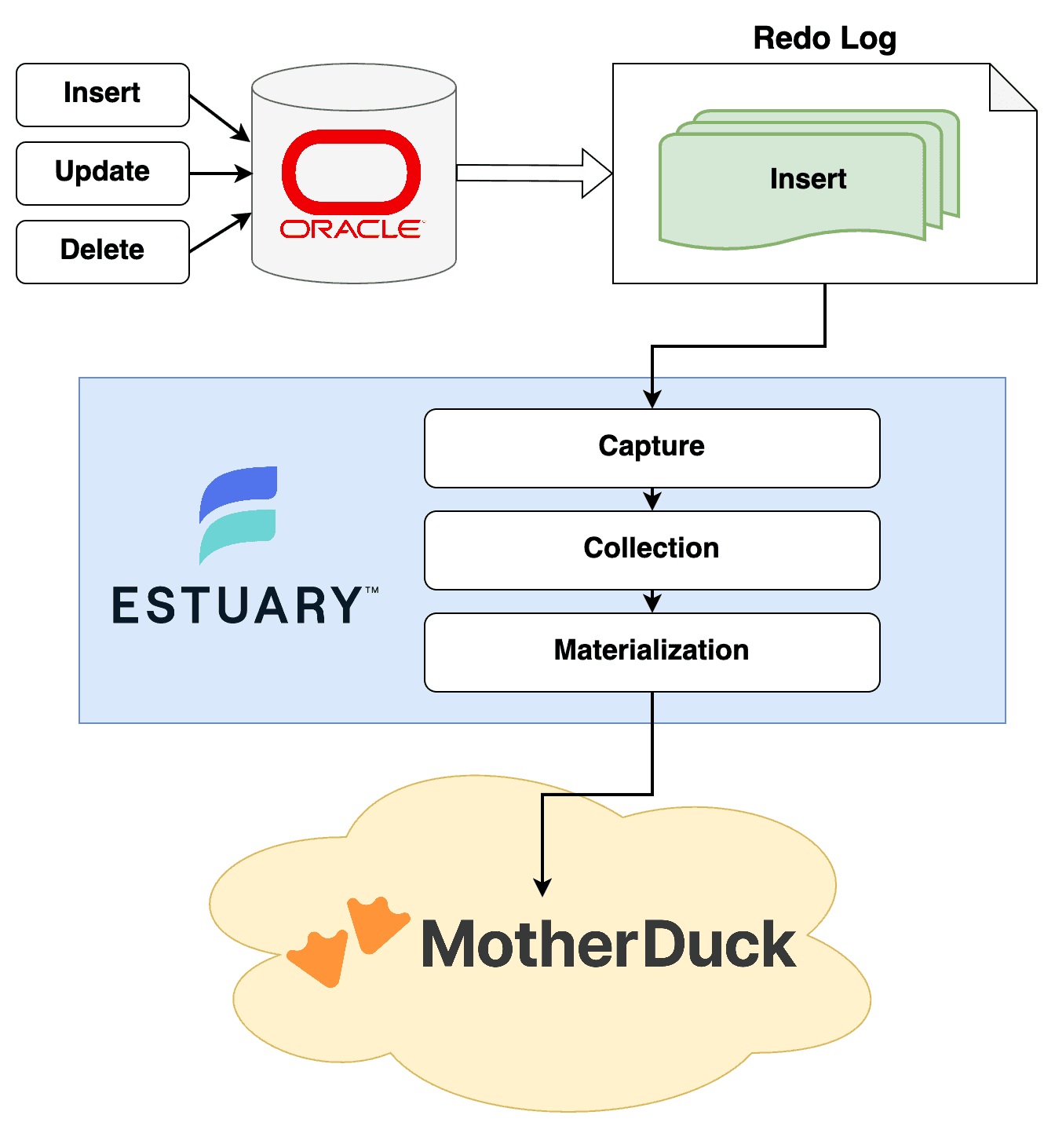
Change Data Capture, or CDC, is the process of capturing updates on database data as they occur. This incremental method of updating downstream data is efficient and results in very low latency. Captured changes include create, update, and delete operations.
CDC can be implemented in a few different ways, but perhaps the most common method (and the one we’ll be focusing on) is log-based CDC. This type of CDC reads changes directly from a database transaction log, such as a WAL (Write-Ahead Log) or, in Oracle’s case, a redo log.
Because it uses the database’s log file as its source of truth, log-based CDC can capture every change made on a database and can do so in the exact order the changes occurred. As in math, the order of operations is an integral part of data. You don’t want to apply row updates to a list of finances out of order.
Relying on logs keeps impact on the database itself low: reading from files is less intensive than continuously running queries. And because you’re not waiting for and sifting through query results, latency can be very low, so you can read updates in near-real time.
Intended for recovery purposes, Oracle’s redo log records all of the changes made on a database as they occur. These files are maintained up to a set retention period. When used for a broader CDC use case, such as replication or migration to another system, it can be helpful to set a more lenient retention policy. When using Estuary Flow, we recommend a minimum retention policy of seven days. That way, if data transfer is interrupted for any reason, it can easily pick back up again without losing important information from archived logs.
While the last section may have hinted at the differences between CDC and other methods, let’s review the options explicitly. In a nutshell, CDC excels at real-time data while batch is more along the lines of the “weekly reporting job” model.
There are certainly small batch options. Some ETL pipelines can support batches in the single-digit-minute range. But even small batches are going to be more inefficient for continuous data transfer than CDC. Another way to look at it is that CDC is incremental while batch data takes periodic snapshots of the entire data state at that point.
That may work just fine when compiling weekly reports based on specific queries. If you’re tracking changes across an entire database, such as replicating a transaction database to an analytical database, however, you’re going to end up with a lot of duplicated work.
Batch data may also miss out on certain historical information. Let’s say you want to kick off a job when an item in your database reaches a certain state (say, ‘PENDING’). When you’re simply taking periodic snapshots, you may miss that window entirely, the item having moved to the next state (‘APPROVED’) in the meantime.
That said, there are still use cases for batch data. Besides compiling specific reports, there may be times when you want to capture from a managed database instance that doesn’t support access to its transaction log. For these cases, adding a filter based on a row’s modified time may help reduce the amount of duplicate data you process.
Luckily, Estuary handles both CDC and batch use cases, and can even combine them in the same pipeline if you want to join data sources. Related to our example using Oracle today, you can compare documentation for Estuary’s Oracle source connectors using CDC versus batch.
We’ll get to the “why” of our pipeline in a moment. But first, let’s make sure we’re all on the same page regarding the “what.”
Oracle Database is a mature, SQL-based relational database management system (RDBMS). Initially released almost half a century ago, Oracle remains in widespread use, with many versions found in the wild today.
Oracle’s autonomous features handle a number of database maintenance tasks automatically, applying security patches and tuning performance as needed.
While this RDBMS uses proprietary software and generally requires a paid license to use, Oracle released a free developer option for their latest 23ai version. Previous versions (such as 21c and 19c) offered a free Express Edition.
There are several options when implementing CDC on an Oracle database, including Oracle GoldenGate, Oracle LogMiner, and Oracle XStream. While Oracle removed LogMiner’s continuous mining option in version 19c, LogMiner is otherwise still supported in newer versions of Oracle. This is what Estuary uses for Oracle CDC.
MotherDuck is a cloud data warehouse based on the DuckDB analytical database. That means it’s super fast and efficient when handling intensive analytics queries that aggregate a vast number of rows or incorporate complex joins.
Sleek and modern, MotherDuck incorporates features that make working with your data a breeze, like the FixIt feature that catches and suggests corrections for common SQL errors, or extensions that let you query directly from additional files, like CSV or Parquet.
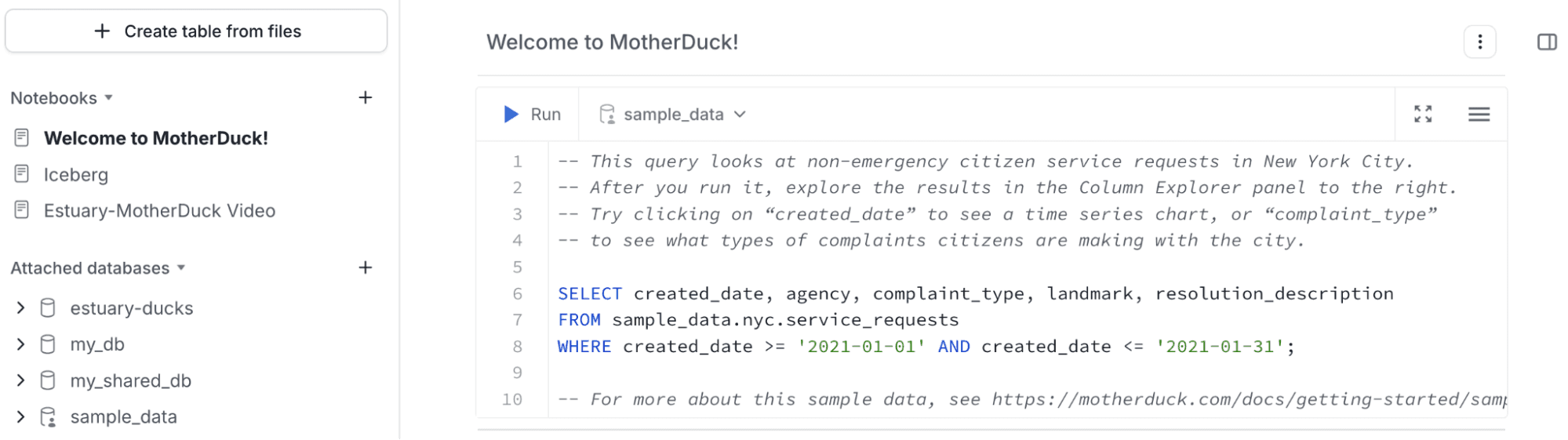
MotherDuck is also collaborative, both in the sense that it allows you to work with your team in a cloud environment and because DuckDB is open-source rather than proprietary.
For this demo, MotherDuck will be our destination for our Oracle CDC data.
A data pipeline platform, Estuary is a reliable, low-cost way to transfer and transform data between systems. Estuary uses CDC to connect to databases, can integrate with streaming systems like Kafka, and supports customizable, low-interval polling or webhooks for API sources so that low-latency is prioritized throughout your pipeline.
In transit, you can transform your data using SQL or TypeScript. Or, if you simply want to replicate data between systems, you can create complete no-code pipelines. If your data changes, Estuary intelligently handles schema evolution to minimize manual tinkering with data systems.
Other highlights include flexible deployment options, such as the ability to deploy in your own private cloud, and a focus on security so your data is protected end-to-end.
Estuary’s numerous source connectors can all integrate seamlessly with MotherDuck as a destination, but we’ll stick with Oracle for our source today.
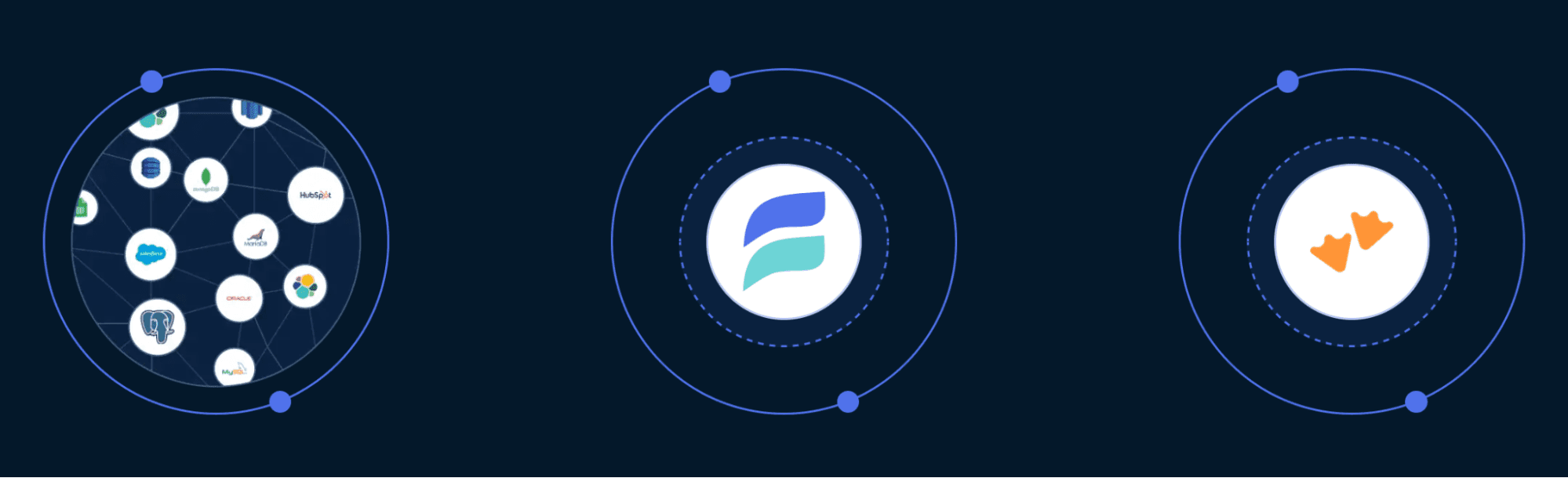
One common use case for replicating data from one database to another using CDC is to continuously transfer data from a transaction database to an analytical database. You don’t want to run intensive queries on your production database: it could impact your application and it wouldn’t be efficient, anyway. Analytical databases are structured specifically to store data in a way that makes it efficient to query many rows at once.
But beyond the standard OLTP-to-OLAP use case, if you’re currently using Oracle as your warehouse, there may be reasons you’d want to migrate completely from Oracle to MotherDuck.
Despite the free developer editions, licensing Oracle Enterprise editions can become pricey, with complex cost estimates for cloud services. In comparison, MotherDuck offers straightforward, low-cost plans. As mentioned earlier, Oracle is also proprietary compared to the open-source DuckDB, so you may want to make the switch if it’s important to understand the exact inner workings of your database or if you’re looking for something that’s easily extensible.
And, while it can be unfair to judge a tech company solely based on its age, there is a stark difference between MotherDuck’s clean, easy-to-use dashboard and some of Oracle’s offerings. For example, this is the latest version of Oracle SQL Developer:
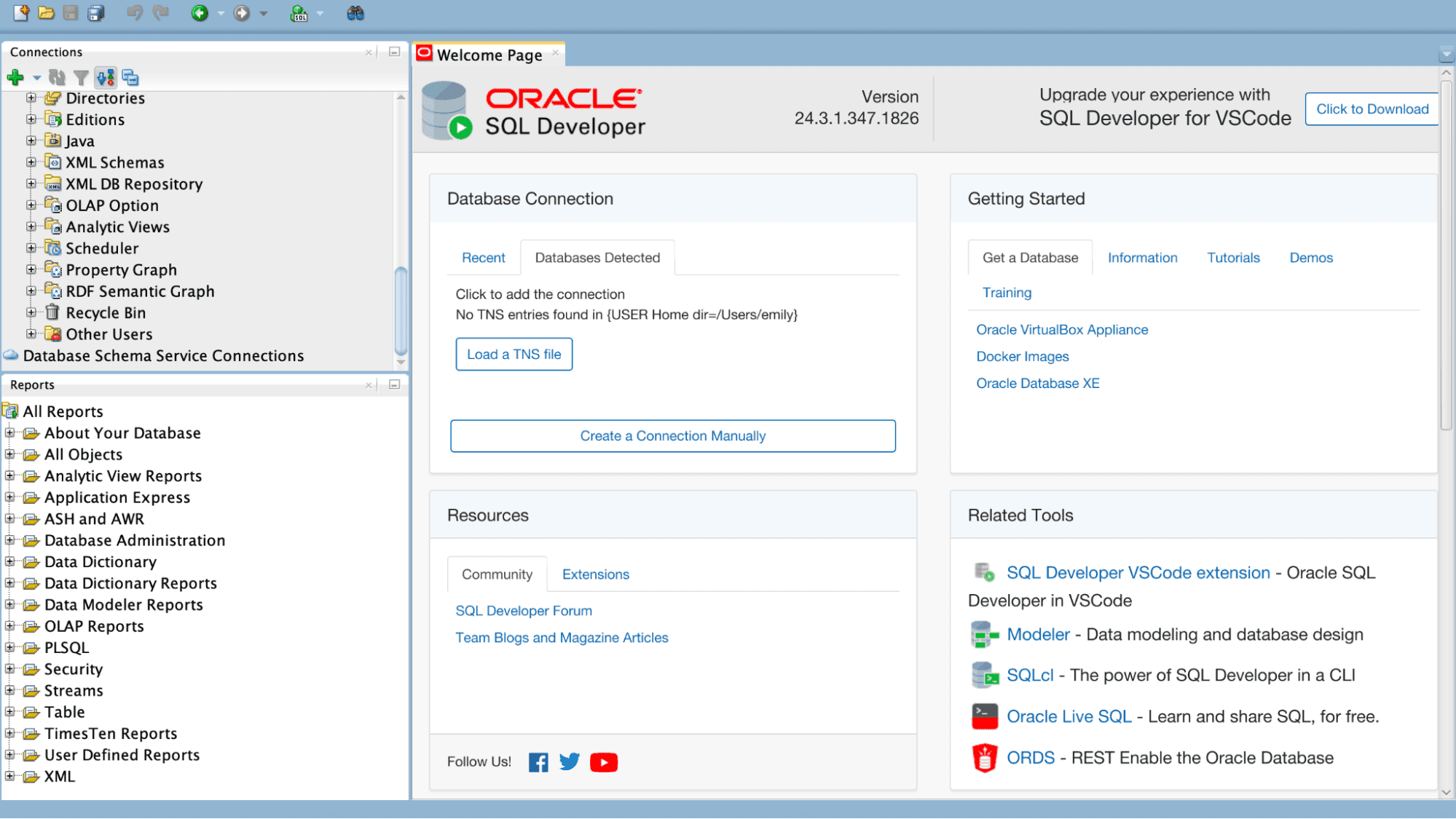
But maybe retro’s back in vogue?
To stream data from Oracle to MotherDuck, you will need:
Both MotherDuck and Estuary offer generous free plans and trials.
Before you can jump into wiring everything up, there are a few configurations to make. Particularly, you want to have a properly-permissioned user for Estuary to access your database, and you need to ensure your database archives logs correctly. After all, Estuary will need to read the redo logs to extract updates.
Create a User
Besides the correct permission grants, the Estuary user will also need a watermarks table to act as a scratch pad. See a sample script below for setting these resources up. For simplicity, the script covers the use case of a non-RDS non-container database. You can see Estuary’s docs for additional use cases.
Copy code
CREATE USER estuary_flow_user IDENTIFIED BY <your_password_here>;
GRANT CREATE SESSION TO estuary_flow_user;
GRANT SELECT ANY TABLE TO estuary_flow_user;
CREATE TABLE estuary_flow_user.FLOW_WATERMARKS(SLOT varchar(1000) PRIMARY KEY, WATERMARK varchar(4000));
GRANT SELECT_CATALOG_ROLE TO estuary_flow_user;
GRANT EXECUTE_CATALOG_ROLE TO estuary_flow_user;
GRANT SELECT ON V$DATABASE TO estuary_flow_user;
GRANT SELECT ON V$LOG TO estuary_flow_user;
GRANT LOGMINING TO estuary_flow_user;
GRANT INSERT, UPDATE ON estuary_flow_user.FLOW_WATERMARKS TO estuary_flow_user;
ALTER DATABASE ADD SUPPLEMENTAL LOG DATA (ALL) COLUMNS;
ALTER USER estuary_flow_user QUOTA UNLIMITED ON USERS;
Set the Retention Policy
If your database doesn’t already handle logs in a robust manner, you’ll need to make some updates. First, ensure that your database is in ARCHIVELOG mode (as opposed to NOARCHIVELOG mode).
You will also need to set the retention policy to at least 24 hours, and preferably 7 days or more. To do so, connect to your database via RMAN.
You can see your current policies with the SHOW ALL; command.
To update the retention policy, run:
Copy code
CONFIGURE RETENTION POLICY TO RECOVERY WINDOW OF 7 DAYS;
Once your Oracle database is properly configured, it’s a breeze to hook it up in Estuary. To do so:
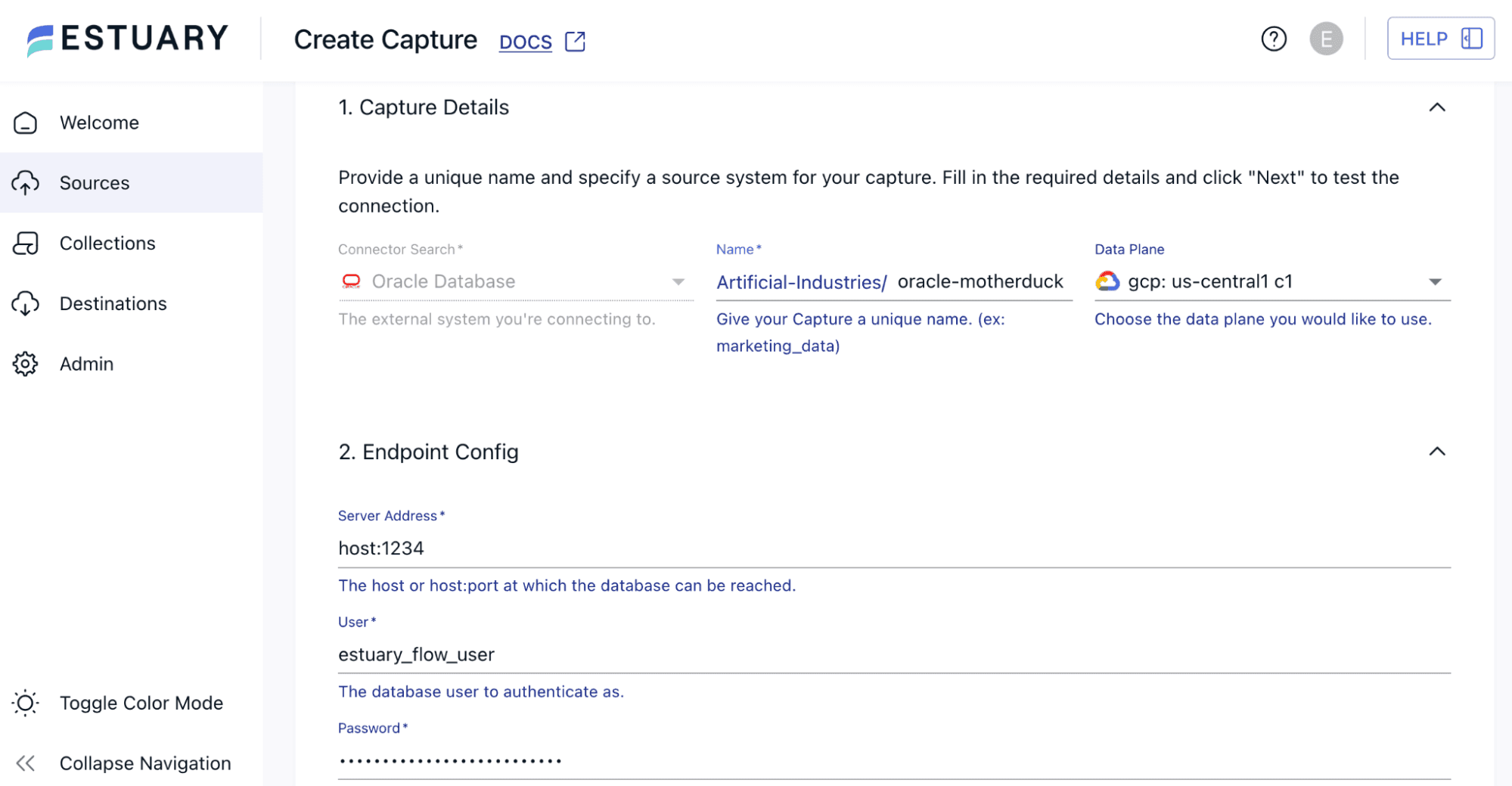
This step will assume you already have an S3 bucket in AWS and user credentials to access that bucket, as well as MotherDuck credentials. If you don’t already have these resources, see the previous article on integrating Estuary with MotherDuck for additional setup details.
To set up a MotherDuck materialization connector in the Estuary dashboard:
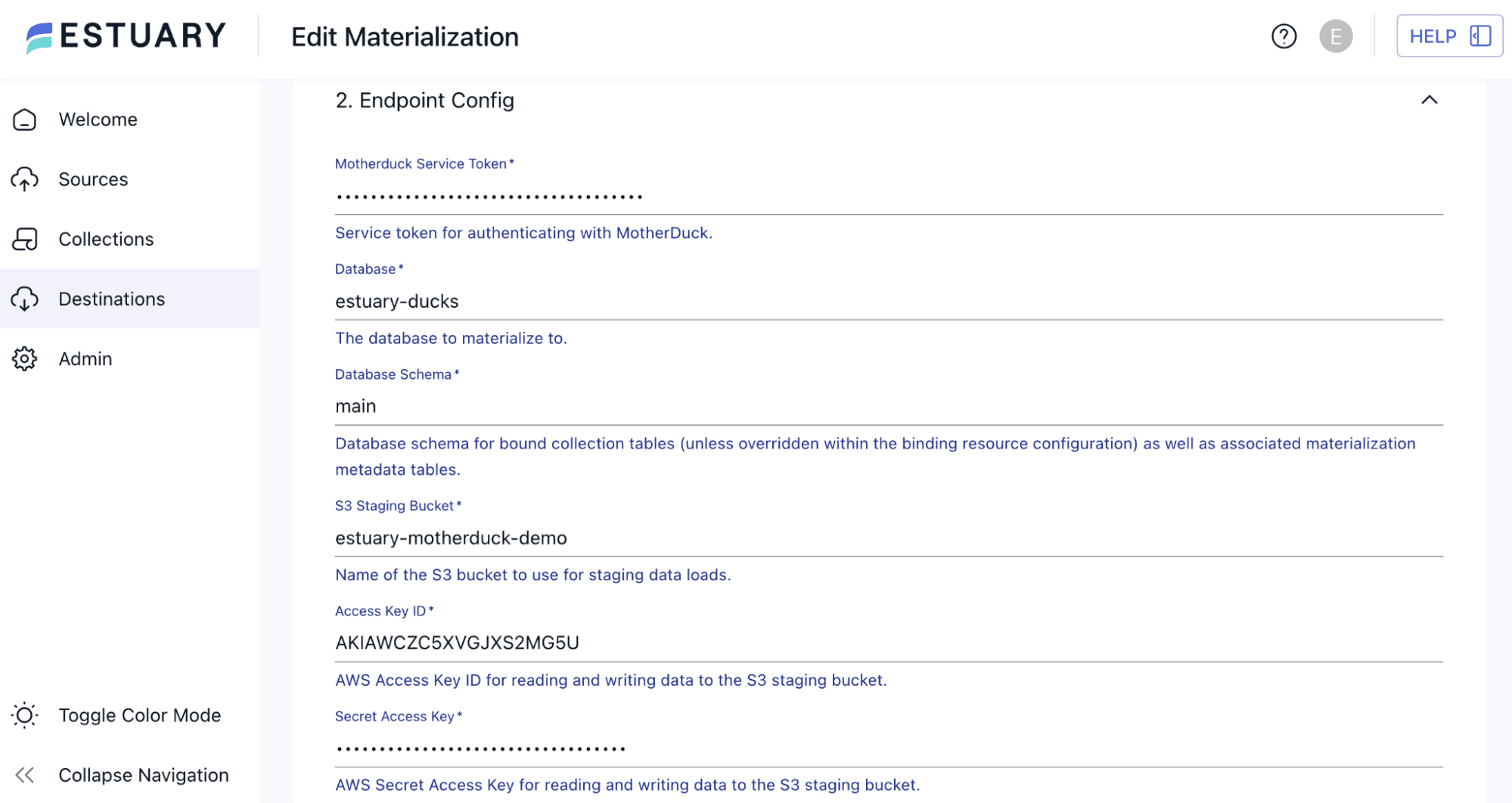
Your Oracle data will start streaming to MotherDuck using low-latency, efficient CDC!
With that, we’ve built a complete pipeline with Estuary.
Whether your data starts out in Oracle, PostgreSQL, or another database, CDC is a great way to keep track of your changing data. It’s efficient, supports low-latency use cases, and ensures you have your entire data history, not just a snapshot.
Free your data with Estuary. Migrate from proprietary enterprise systems to a streamlined, modern destination like MotherDuck. And don’t forget to stop by MotherDuck’s and Estuary’s community Slack channels. We’re interested to hear how you spread your wings!